Client/Patient Flowboard
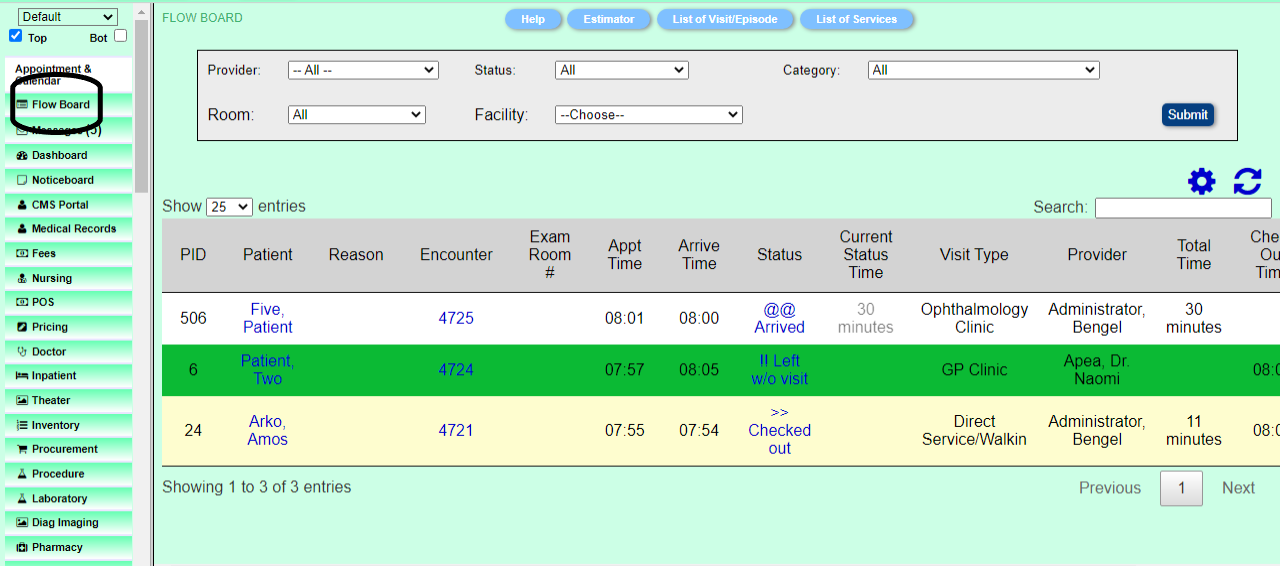
Patient Flow Board allows users see the flow of clients/patients and how long (time) they have been waiting. This information helps monitoring of patient flow, statistics and improve efficiency.
• Patient Flow Board shows the patient status with colors based on the appointment status code. The 'Current Status Time' is reset and restarted with each status change, but the total time keeps running (times are based upon arrival time not appointment time). These time and status changes are stored so they can be retrieved on the Patient Flow Board report.
How do I access the Flowboard?
• Login to BH
• Click Client/Patient Flowboard, at the top of the left navigator
How do I Check-Out Client/Patient?
• When a Client/Patient exists the facility he/she needs to be checked out on the Flowboard.
• Click Client/Patient Flowboard, at the top of the left navigator.
• Identify the Client/Patient row on the Flowboard.
• Identify the Client/Patient Status on the row on the Flowboard, which will often read @Arrived.
• Click the Status to load the Change Status popup screen.
• On the Change Status popup screen drop the Status Type list.
• Select Checked out.
• Click Save.
Note, when a Client/Patient is Checked out, the Time Count stops and the color of the row for the patient changes. It also reflects on all the other flowboards that the Client/Patient has checked out of the facility.
Images
Patient Registration Page