CASHIER PAYMENT - PATIENT
PATIENT PAYMENT, CASHIER RECEIPTING FOR ENCOUNTER/VISIT
BH Cashier Payment module allows the Cashier to process payments, generate and handle receipts. It is intergrated with Billing and Fees module.
Login to BH Read more on Login/Logout
• If you have already login Clear Patient. Click on the Clear Patient button on the top left of the title bar.
• Click/Select Billing & Fees submenu. The submenu will drop down.
• Click/Select Cashier Payment. This will load the payment page.
Note: The name of the Selected Client/Patient will be displayed at the top of the Page. Example "Accept Payment for : One Patient (1)"
How do I Enter/Record Paymeny at the Payment Page
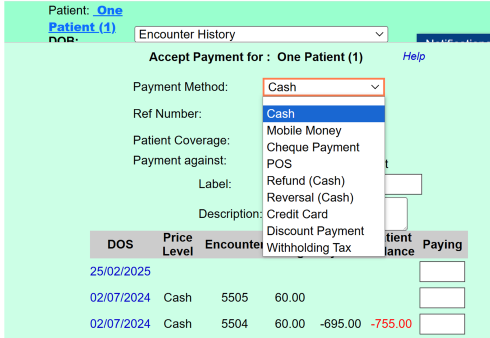
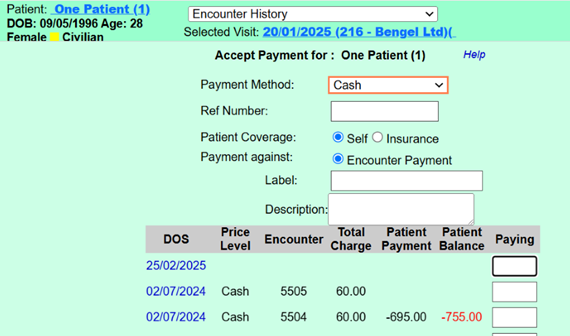
Payment Method is dropdown. It is a mandatory/required entry
Drop and select the appropriate payment Method
This mandatory/required for some Payment Method. Mandatory entry includes Cheque number for Cheque payment, Mobile Money transaction ID.
Radio bottom option indication whether payment is covering cash/self encounter/visit OR covering corporate/insurance visit.
The option is ticked by default for Cash/Self.
Casher need to change if payment is for corporate/insurance. Example, a Cash Patient payment for bill/invoice corvering his/her cash encounter/visit.
This option has a relation with Patient Coverage above. The radio bottom option indication payment against Co-Pay, Invoice Balance, Pre Pay.
If Patient Coverage is Self, by default "Encounter Payment" is ticked
If Patient Coverage is Insurance, cashier need to tick Co-Pay or Invoice Balance or Pre Pay.
The Label entry field is optional.
It is to give room for the Facility to categorize different payments entries.
The Description entry field is optional.
The cashier may enter/record detail description of the payment.
Entry may include type of services/items being paid for. Example: Payment for Consultation, Labs and Drugs
How do I enter/record the Amount?
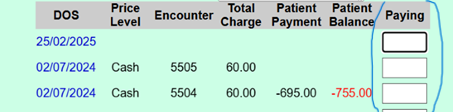
The field titled "Paying" is for entering or recording the amount.
Locate the row for the Encounter/Visit date and number and type the exact amount.
Multple may be enteered for different rows for different Encounter/Visit.
The Total Amount is displayed below
Save/Submit and Print or SMS by clicking the one of the options below.
The recommended or prefered Save option is "Receipt Tharmal". But the facilty may be prescribed otherwise.
Saving, Printing and Sending SMS

Cancel will not save or submit you entries.
Receipt Tharmal saves and displays the content of a Receipt (not an invoice). In the healthcare sector this option is recommended. The option can be printed on receipt/tharmal printer.
You can SMS if the SMS module is installed.
You can export to PDF version.
Receipt A4 saves and displays the content of a Receipt (not an invoice) in an A4 form. The option can be printed on an A4 sheet with A4 printer.
You can SMS if the SMS module is installed.
You can export to PDF version.
Invoice Receipt Tharmal saves and displays the content of an Invoice in a tharmal form. The option can be printed on receipt/tharmal printer.
You can SMS if the SMS module is installed.
You can export to PDF version.
Invoice Receipt A4 saves and displays the content of an Invoice in an A4 form. The option can be printed on an A4 sheet with A4 printer.
You can SMS if the SMS module is installed.
You can export to PDF version.
Payment Page
Payment Method