What is Bengel HealthAdm Worksheet?
• The term Worksheet in Bengel HealthAdm is a working interface/page/sheet you interact with to display or record data/information.
• TITLE: On the left top coner of a worksheet is a Title that describes the functions, features and information about the worksheet.
• RELATED INFORMATION LINKS: On the left center are links that open other pages/reports for accessing related information.
• DATA FILTERS: Data filter is used to screen and/or exclude/include data/information. Data filtering is the process of choosing a smaller part of your data set and using that subset for viewing or analysis. Example of filter is from and to date range
SHEETS: A worksheet may contain one sheet or multiple sheets. Each sheet has a tab with a title and can may be access by clicking on the tab
• NUMBER OF ROWS DISPLAYED: There is drop down to specified the number rows to diaplay. By default the number is 25.
• SEARCH BOX/FIELD: Worksheet has search box/field to retrieve related information from the database
• COLUMN, ROW & CELL. The worksheet consists of cells organized into columns and rows.
Eack column are groups of cells that are on the same vertical line.Eack columns has a title describing the related function(s) performed by the cells.
Eack row are groups of cells that are on the same horizontal line. Each row belongs to a patient/client or an item.
Eack cell contains either information or a link to an interface/page that displays information or page for data entry. When clicked on the link it opens the interface/page in a popup or tab or another window.
How do I access the Medical Worksheet?
• Login to HealthAdm
• Select Doctor menu
• Select Medical worksheet link
A Doctors login access may be assigned to the Medical Worksheet as the default work. I when the Doctor login to Bengel HealthAdm the intial top page will display the sheet.
<• Login to HealthAdm
• Select Client/Patient
• Select Visit/Encounter. The Forms interface will display
• On the Medical worksheet click on the Form link for the related Client/Patient
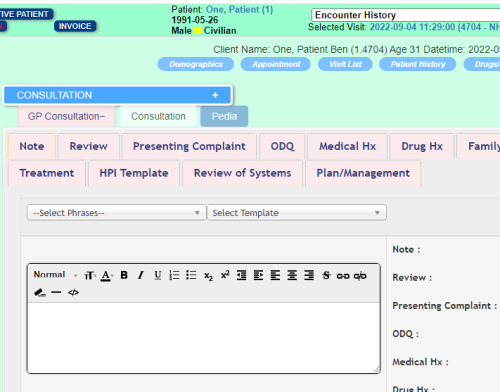
• On the Patient Forms interface drop the Doctor's tab and select Consultation Form
• Enter your new password again at the Repeat Password field
• Click on Save
REPORTS